
Free WhatsApp Number Check Online: A Practical Guide to Safe Verification
Before a sales team sends its first WhatsApp message, it needs to answer a simpler question: which phone numbers actually show a registration indicator on WhatsApp right now? Raw lead lists often mix registered accounts, inactive numbers, formatting errors, and duplicate contacts. Treating every row as a valid WhatsApp account wastes outreach time and makes campaign results hard to interpret.
A free WhatsApp number check online gives you a practical first step. You can test a few numbers, confirm the required international format, and see the difference between a registered account and a number that is not found. When the same task grows from a few contacts to a spreadsheet, the workflow should scale into bulk import, a paced check, result filtering, and export.
This guide follows that workflow in order. It first explains why checking matters, then compares two ways to check a number, walks through the bulk workflow step by step, and finishes with privacy, pacing, and pre-outreach checks. You can follow the process with WAChecker, a Chrome extension built for this exact task.
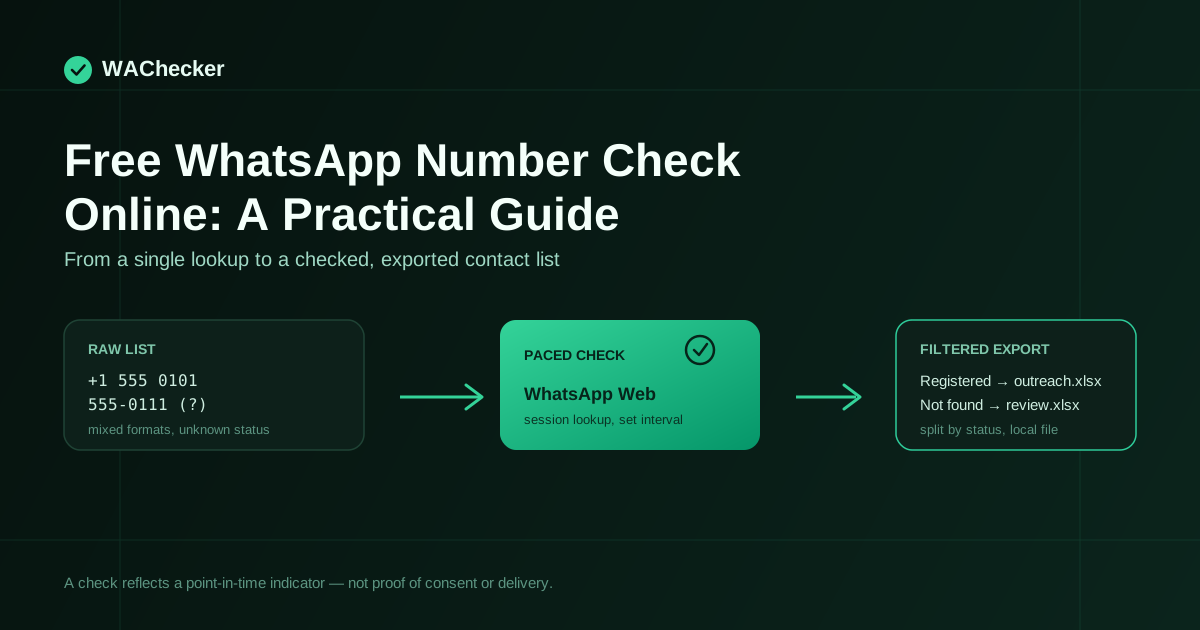 Checking WhatsApp registration status before outreach helps you send to a cleaner list.
Quick Answer: How Does a Free WhatsApp Number Check Online Work?
A useful checking flow has three connected stages:
- Prepare the numbers. Normalize each contact with an international country code and remove obvious duplicates or empty rows. See the number formatting guide for common fixes.
- Check registration status. Start with a small sample, then check the full list at a controlled pace. The result should clearly separate registered accounts from numbers that are not found — see what each status means.
- Use the result. Export the registered numbers, keep the original source data for reference, and only contact people you have a lawful and relevant reason to reach.
The check itself is only one part of the process. The sections below explain why clean inputs, local processing, understandable results, and responsible outreach all matter.
Why Check WhatsApp Numbers Before Outreach?
Running a WhatsApp number check before sending messages has three practical benefits for sales and marketing workflows:
1. Fewer messages sent to non-existent accounts
When your outreach list has already been checked, fewer messages are sent to numbers that show no registration indicator. This does not guarantee delivery or a reply — a registered account can still ignore, block, or report a message — but it removes an easily avoidable category of failed sends.
2. Lower avoidable restriction risk
WhatsApp can restrict accounts that repeatedly send to invalid or unregistered numbers alongside other risk signals. Checking numbers first, and pacing the checks and sends themselves, are two of the controllable factors — see Run a Checking Task and Control Its Pace for the specific reference numbers WAChecker documents, and their limits.
3. Cleaner CRM segmentation
Knowing which contacts show a WhatsApp registration indicator lets you route them to WhatsApp outreach and route the rest to SMS, email, or another channel, instead of guessing.
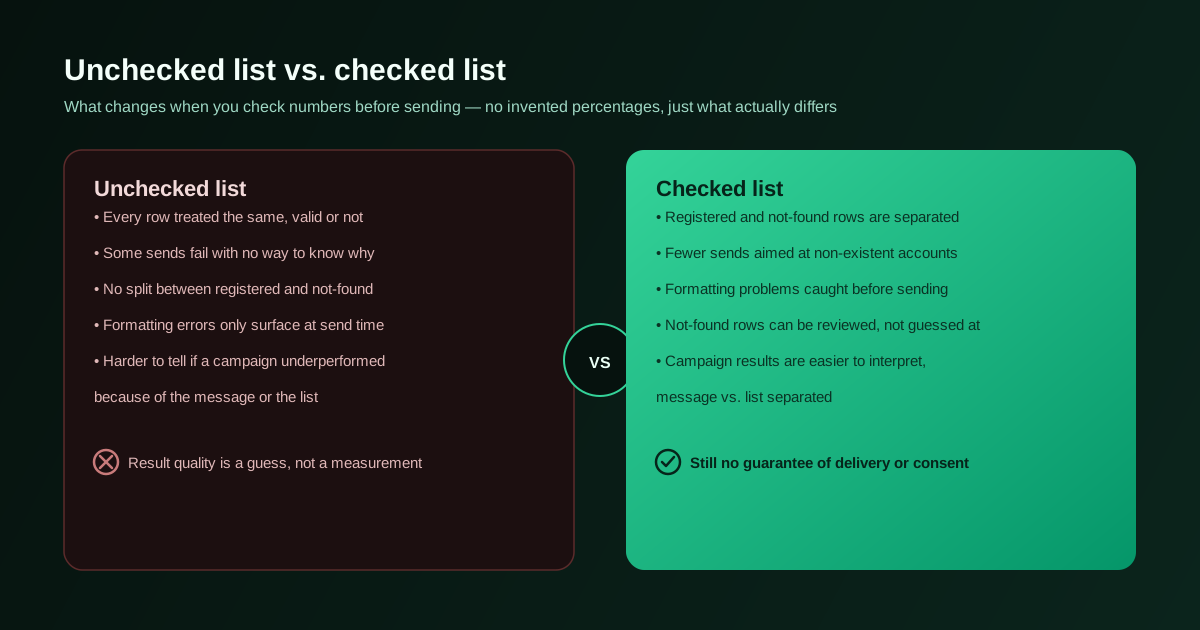 Comparing an unfiltered contact list against one that has been checked first.
From a Free Online Check to Bulk Checking
The benefits above explain why checking belongs before outreach. The next decision is how much of the list you need to process. A free online WhatsApp number check is a good way to test a small sample or confirm your formatting. Once the source becomes a CRM export, an event list, or another business dataset you're authorized to process, checking one number at a time stops being practical.
The bulk WhatsApp number checker workflow covers this in more detail. In short, WAChecker lets you:
- Import a list from a pasted block of numbers, a CSV, or an Excel file.
- Filter results into registered and not-found categories after the task completes.
- Export the filtered numbers to a local Excel file for the next step in your workflow.
What to Check Before You Trust a Verification Tool
Scaling the workflow saves time, but it also changes what you need to check about the tool itself. How a service checks the list matters as much as whether it returns a result. Before uploading customer data or running a high-volume task, confirm where the data is processed, how the requests are paced, and who controls that pace. Services that skip these questions can introduce three avoidable risks:
1. Restriction risk from unpaced requests
A tool that fires requests as fast as possible, with no interval between checks, is more likely to trigger a restriction on the connected account regardless of how the tool itself is built.
2. Uploading your contact list to someone else's server
Many free online checkers ask you to upload your raw phone list to a remote server before they will check it. Once a list leaves your device, you have to trust that provider's storage and retention practices — a decision worth making deliberately, not by default.
3. Checks routed through a shared or already-flagged connection
Server-side checking services often route requests through shared infrastructure. If that infrastructure has already been flagged, checks routed through it can fail or return unreliable results regardless of your own account's history.
How WAChecker Approaches These Tradeoffs
These risks don't mean teams should go back to checking numbers one at a time. They mean the bulk workflow needs real controls, not just a progress bar. WAChecker is a Chrome extension that runs the check in your own browser session:
- Local processing. WAChecker reads and processes your imported list inside the extension, using the WhatsApp Web session you are already logged into. See the security overview for the full data-handling summary — that page, not this paragraph, is the controlling description.
- Configurable pacing. You can set an interval between checks instead of running the list as fast as possible. Pacing reduces one avoidable risk factor; it does not guarantee an account will avoid restrictions, and there is no interval that is safe for every account — see Run a Checking Task and Control Its Pace for the reference ranges and their conditions.
- Result filtering and export. After a task finishes, results are split into registered and not-found categories that you can review and export separately. See Understand WAChecker Result Statuses for what each status does and does not prove.
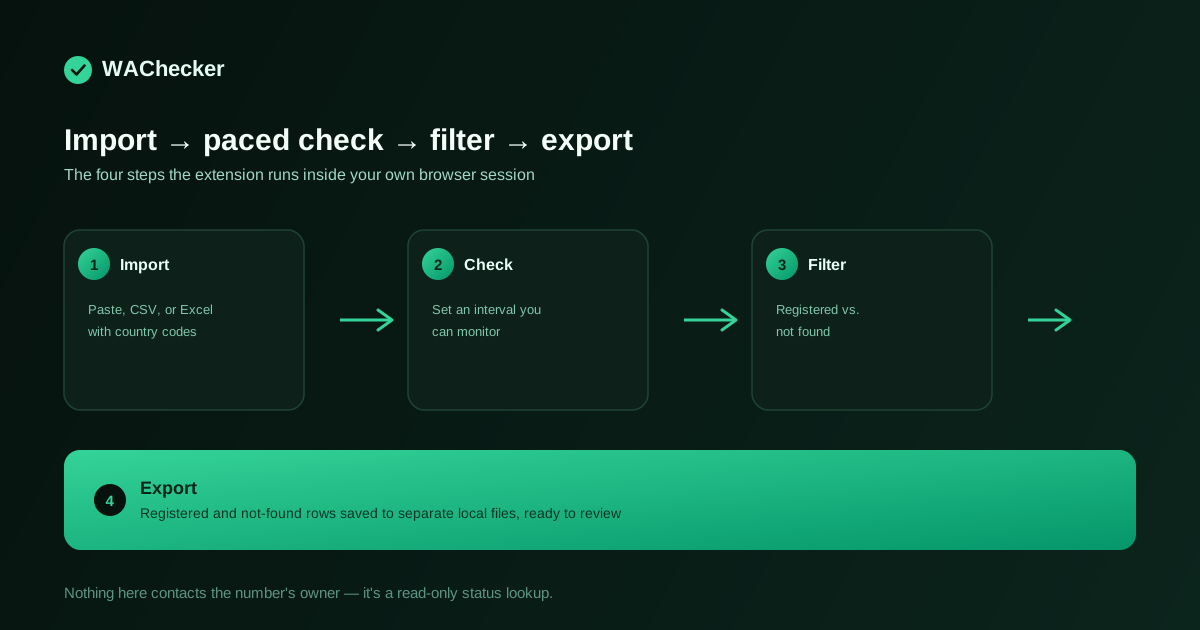 The WAChecker extension interface: import a list, run a paced check, and filter results by status.
How to Check if a Number Is on WhatsApp: 2 Practical Methods
With the workflow and tradeoffs clear, pick the method that matches the size of the task: a manual lookup for one number, or the extension for a repeatable check across a list.
Method 1: Manually check via chat links
Inside WhatsApp, when you send a phone number to another person or to your own "Message Yourself" chat, the number automatically becomes a hyperlink. This is a built-in feature that lets you copy the number or start a conversation with one click.
You can use the same feature as a basic, one-at-a-time check. When you tap the hyperlinked number:
- If the number shows a registration indicator: it displays two options ("Chat with..." and "Dial" or "Copy").
- If it does not: it displays only the dial or copy option.
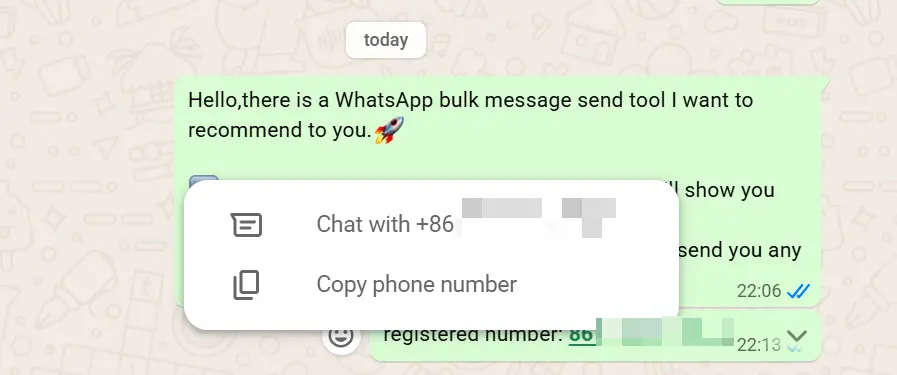 A number with a registration indicator shows two options.
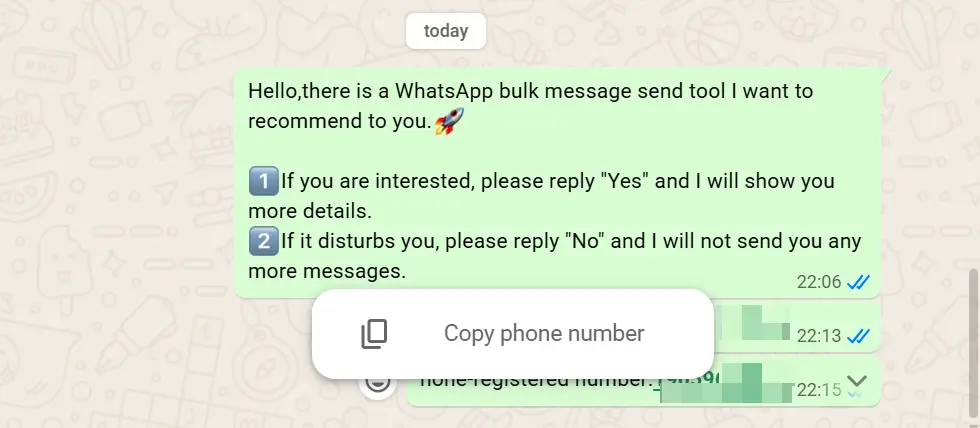 A number with no registration indicator shows only the dial/copy option.
This method works for occasional lookups. It does not scale to a list of any real size, and it tells you nothing about pacing or export.
Method 2: Use a Chrome extension for bulk checking
For a list larger than a handful of numbers, WAChecker is a free Chrome extension built for exactly this task. Import a list (paste, CSV, or Excel), run a paced check, and filter the results into registered and not-found categories before exporting.
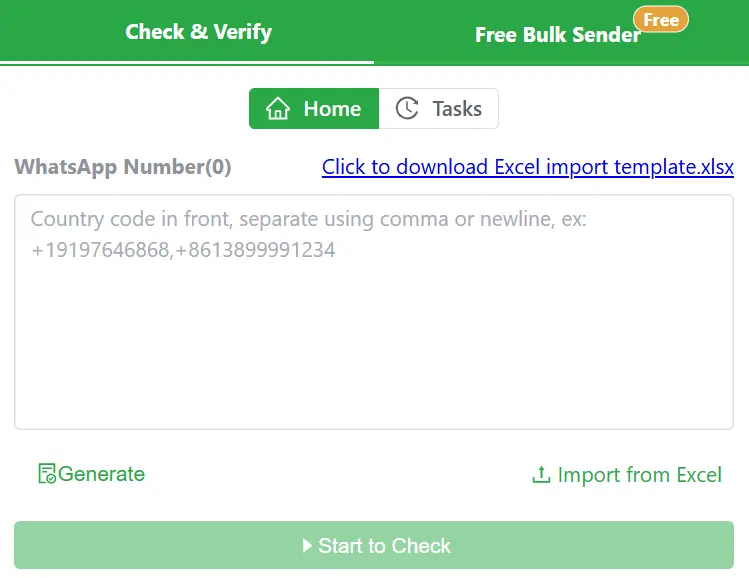 The WAChecker Chrome extension interface.
The free plan includes a limited number of checks per day; a Pro plan removes that daily limit for a monthly fee — see the pricing page for current plan details.
Free WhatsApp Number Check Online: Step-by-Step
This walkthrough turns Method 2 into one continuous task, from raw numbers to an export you can review. Follow these steps with WAChecker — the full version with screenshots is in the getting started guide.
- Install the extension: add WAChecker to Google Chrome and pin it to the toolbar.
- Open WhatsApp Web: log in to your WhatsApp Web session in the same browser.
- Import your list: click the extension icon and paste, or upload a CSV/Excel file (numbers should include country codes, e.g.
+1...or+44...). - Set an interval: choose a checking interval you can monitor, rather than the fastest available setting.
- Start checking: the extension checks the list and reports each number's status as it completes.
- Export: export the registered and not-found lists to separate local files for the next step in your workflow.
Pre-Outreach Checklist
A check is complete when the result is usable, not merely when the progress bar reaches 100%. Before moving the exported list into any outreach tool, review this checklist:
- Country code format: are all numbers formatted with an international country code (e.g.
+1for the US,+91for India)? See the formatting guide. - Where the check ran: was the list checked locally in the browser, or uploaded to a third-party server you don't control?
- Checking interval: was the list checked at a pace you set and could monitor, rather than the fastest possible setting?
- Result filtering: have not-found and duplicate numbers been removed from the outreach file?
- Account history: is the WhatsApp account you'll send from an established one, or a newly registered number? Newer accounts generally warrant more conservative volume — see Run a Checking Task and Control Its Pace.
Frequently Asked Questions (FAQ)
1. How fast can I check a list of 10,000 WhatsApp numbers?
There is no fixed safe speed for every account. WAChecker lets you set the interval between checks; a shorter list checked in smaller batches, at a pace you can monitor, is generally more conservative than running the entire list at maximum speed. See Run a Checking Task and Control Its Pace for the reference ranges some users report by account age, and why they are reference points, not guarantees.
2. Can I check WhatsApp Business accounts separately from personal accounts?
WAChecker reports whether a number shows a registration indicator through the current WhatsApp Web session. Whether that indicator distinguishes a Business profile from a personal account can depend on how the contact's account is configured; treat the result as a registration indicator first, and confirm account type manually when it matters for segmentation.
3. Does checking numbers cost money?
WAChecker's free plan includes a limited number of checks per day. The Pro plan removes that daily limit for a monthly fee. See the pricing page for the current plan details and price — this article does not repeat the number so it can't go stale.
4. Will my WhatsApp account be restricted if I check too many numbers?
Checking numbers, and later sending to them, both carry some restriction risk if run without pacing — WAChecker cannot eliminate that risk, and no tool can guarantee an account will avoid restrictions. Setting a checking interval, starting with a small batch, and watching WhatsApp Web for warnings are the controls WAChecker gives you. See Run a Checking Task and Control Its Pace for the full explanation.
Start Checking Your WhatsApp Contact List
An unchecked phone list makes it harder to tell whether a campaign underperformed because of the message or because of the list. Start with a small, authorized test list and WAChecker to see how the workflow fits your data before running a full list.
Try WAChecker or read the getting started guide for a full walkthrough.
Related reading: What Is a WhatsApp Number Checker? · Checker vs Validator · How to Clean a WhatsApp Contact List